
Corsair iCue 4 Profiles
I have developed some iCue 4 profiles ready to download for free
These are free Corsair iCue 4 lighting profiles that I designed and use on my own setup. Each one is a ready-to-import .cueprofile file, so you can apply a full animated lighting effect to your keyboard, mouse, headset, fans or case in just a couple of clicks.
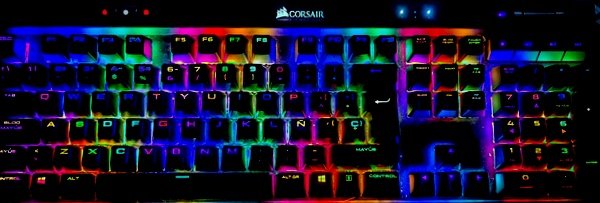
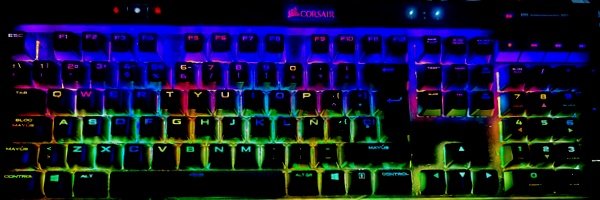
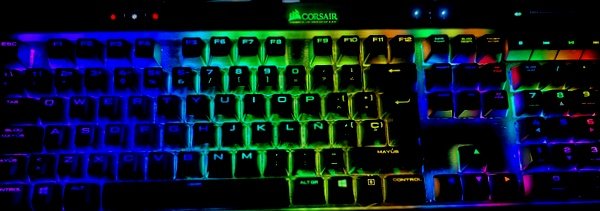
Why use these iCue profiles
- Ready-made animated effects that look great out of the box — no need to design lighting layers yourself.
- Compatible with any device that supports iCue lighting layers, including keyboards, mice, headsets, fans and light strips.
- 100% free, no account and no watermark — download the .cueprofile file and import it straight into Corsair iCue 4.
How to import an iCue profile
- Download the .cueprofile file for the effect you like.
- Open Corsair iCue 4 and select the device you want to customise.
- Open Lighting Effects, then Lighting Layers, and choose Import.
- Select the downloaded file, apply the effect and tweak colors or speed to your taste.
Frequently asked questions about Corsair iCue profiles
Are these Corsair iCue 4 profiles free?
Yes. Every iCue profile on this page is 100% free to download and use, with no account required.
Which devices do these iCue profiles support?
They work with any Corsair device that supports iCue lighting layers, such as keyboards, mice, headsets, RGB fans, light strips and case lighting.
How do I import a .cueprofile file into iCue 4?
Open Corsair iCue 4, select your device, open Lighting Effects → Lighting Layers, click Import and pick the downloaded .cueprofile file. The effect is applied immediately.